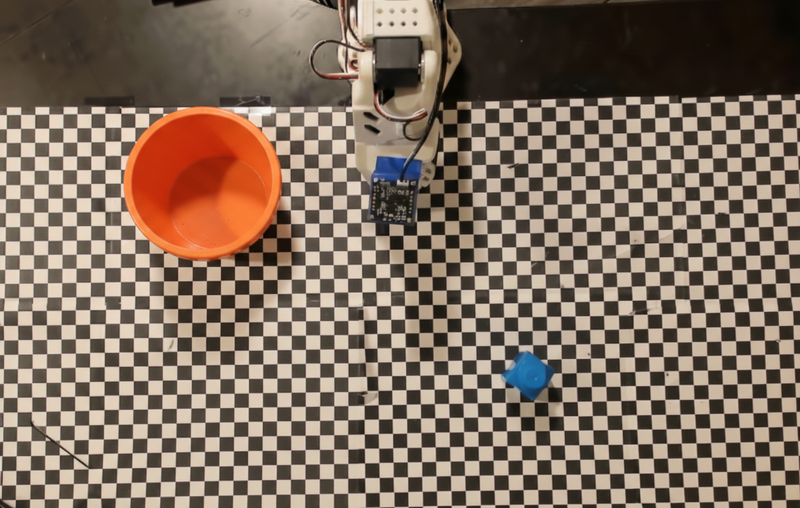
本示例演示如何使用自定义机器人 API 进行任务编排。示例中提供了一个用于抓取与放置(pick-and-place)操作的模拟(mock)API。任务是拾取一个蓝色方块并将其放入一个橙色碗中:
与本页其他示例类似,可运行的完整代码位于 Robotics cookbook。
第一步是使用以下提示定位两个物体:
prompt = """
            Locate and point to the blue block and the orange bowl. The label
            returned should be an identifying name for the object detected.
            The answer should follow the json format: [{"point": <point>, "label": <label1>}, ...].
            The points are in [y, x] format normalized to 0-1000.
          """
模型的响应会包含方块与碗的归一化坐标:
[
  {"point": [389, 252], "label": "orange bowl"},
  {"point": [727, 659], "label": "blue block"}
]
def move(x, y, high):
  print(f"moving to coordinates: {x}, {y}, {15 if high else 5}")

def setGripperState(opened):
  print("Opening gripper" if opened else "Closing gripper")

def returnToOrigin():
  print("Returning to origin pose")
下一步是按所需逻辑调用一系列 API 函数来执行动作。以下提示包含了模型在编排任务时应使用的机器人 API 描述。
prompt = f"""
    You are a robotic arm with six degrees-of-freedom. You have the
    following functions available to you:

    def move(x, y, high):
      # moves the arm to the given coordinates. The boolean value 'high' set
      to True means the robot arm should be lifted above the scene for
      avoiding obstacles during motion. 'high' set to False means the robot
      arm should have the gripper placed on the surface for interacting with
      objects.

    def setGripperState(opened):
      # Opens the gripper if opened set to true, otherwise closes the gripper

    def returnToOrigin():
      # Returns the robot to an initial state. Should be called as a cleanup
      operation.

    The origin point for calculating the moves is at normalized point
    y={robot_origin_y}, x={robot_origin_x}. Use this as the new (0,0) for
    calculating moves, allowing x and y to be negative.
    Perform a pick and place operation where you pick up the blue block at
    normalized coordinates ({block_x}, {block_y}) (relative coordinates:
    {block_relative_x}, {block_relative_y}) and place it into the orange
    bowl at normalized coordinates ({bowl_x}, {bowl_y})
    (relative coordinates: {bowl_relative_x}, {bowl_relative_y}).
    Provide the sequence of function calls as a JSON list of objects, where
    each object has a "function" key (the function name) and an "args" key
    (a list of arguments for the function).
    Also, include your reasoning before the JSON output.
    For example:
    Reasoning: To pick up the block, I will first move the arm to a high
    position above the block, open the gripper, move down to the block,
    close the gripper, lift the arm, move to a high position above the bowl,
    move down to the bowl, open the gripper, and then lift the arm back to
    a high position.
"""
下面展示了基于该提示与模拟机器人 API 的一个可能输出。输出包含模型的思考过程,以及它规划出的任务列表,并显示了模型串联的机器人函数调用的执行结果:
Reasoning: To perform the pick and place operation, I will first move the
robotic arm to a high position above the blue block to ensure clearance. Then, I
will open the gripper in preparation for grasping. Next, I will lower the arm to
the surface level to position the gripper around the block and close the gripper
to secure it. After picking up the block, I will lift the arm to clear the
surface and move towards the orange bowl, maintaining a high position to avoid
collisions. Once positioned above the bowl, I will lower the arm to place the
block inside. I will then open the gripper to release the block. Finally, I will
lift the arm out of the bowl and call `returnToOrigin` to reset the robot's
state.

[
  {
    "function": "move",
    "args": [163, 427, true]
  },
  {
    "function": "setGripperState",
    "args": [true]
  },
  {
    "function": "move",
    "args": [163, 427, false]
  },
  {
    "function": "setGripperState",
    "args": [false]
  },
  {
    "function": "move",
    "args": [163, 427, true]
  },
  {
    "function": "move",
    "args": [-247, 90, true]
  },
  {
    "function": "move",
    "args": [-247, 90, false]
  },
  {
    "function": "setGripperState",
    "args": [true]
  },
  {
    "function": "move",
    "args": [-247, 90, true]
  },
  {
    "function": "returnToOrigin",
    "args": []
  }
]

Executing Function Calls:
moving to coordinates: 163, 427, 15
Opening gripper
moving to coordinates: 163, 427, 5
Closing gripper
moving to coordinates: 163, 427, 15
moving to coordinates: -247, 90, 15
moving to coordinates: -247, 90, 5
Opening gripper
moving to coordinates: -247, 90, 15
Returning to origin pose
Gemini Robotics-ER 1.5 可以建议并执行 Python 代码,以完成需要动态操作的任务,例如放大图像区域以获取更细节。
本示例展示模型如何建议使用 code execution 工具对图像中的特定区域进行“放大”,从而回答用户问题。
from google import genai
from google.genai import types

client = genai.Client(api_key=YOUR_API_KEY)

MODEL_ID = "gemini-robotics-er-1.5-preview"

# Load your image and set up your prompt
with open('path/to/image-of-object.jpg', 'rb') as f:
    image_bytes = f.read()
prompt = """
          What is the air quality reading? Using the code execution feature,
          zoom in on the image to take a closer look.
        """

response = client.models.generate_content(
    model=MODEL_ID,
    contents=[
        types.Part.from_bytes(
            data=image_bytes,
            mime_type='image/jpeg',
        ),
        prompt
    ],
    config = types.GenerateContentConfig(
        temperature=0.5,
        tools=[types.Tool(code_execution=types.ToolCodeExecution)]
    )
)

for part in response.candidates[0].content.parts:
    if part.text is not None:
        print(part.text)
    if part.executable_code is not None:
        print(part.executable_code.code)
    if part.code_execution_result is not None:
        print(part.code_execution_result.output)
下面展示该任务的一个可能模型响应,输出显示模型生成用于放大图像并更好读取屏幕的代码,以及它对裁剪范围所做调整的思考过程:
# Detect relevant objects and output in json format
# [{"box_2d": [379, 407, 481, 553], "label": "display"}]
from PIL import Image

# Open the image
img = Image.open("input_file_0.jpeg")

# Define the coordinates for cropping (normalized to 0-1000)
# Based on visual inspection, the display is roughly centered around [430, 430] to [500, 500] in a 1000x1000 scale.
# Let's try to zoom in on the display area.
# Bounding box for display: [ymin, xmin, ymax, xmax] in pixels.
# From visual inspection of the original image (size 90489 bytes, resolution
unknown but let's assume a standard aspect ratio and roughly 1000x1000 for
relative positioning),
# the display is located at approximately y=380-480, x=410-540.
# Let's define a larger area around it for context.
# Let's say we want to crop from y=350 to y=550 and x=350 to x=650.

...

thought
The crop was too tight and only captured part of the display. Let's adjust the bounding box.
The previous crop was `img.crop((400, 350, 600, 500))`. This means xmin=400, ymin=350, xmax=600, ymax=500.
The display is centered around x=480, y=430.
The previous crop captured the left side of the display.
Let's expand the x range to the right and y range to cover the whole circle.
New bounding box estimate: ymin=370, xmin=400, ymax=500, xmax=600.
Let's try again with a wider crop.
# Detect relevant objects and output in json format
# [{"box_2d": [379, 407, 481, 553], "label": "display"}]
from PIL import Image

# Open the image
img = Image.open("input_file_0.jpeg")

# Define the coordinates for cropping (normalized to 0-1000)
...

The reading of 14 falls into the "Moderate" category.
The prompt asks for the "air quality reading", which can be interpreted as
either the numerical value or the categorical description. Given the numerical
value is explicitly displayed, it's the primary reading.

Let's provide the numerical value as the reading.
The reading is 014.
Based on the display on the air purifier, the air quality reading is **014**.
如运行模型时可能采集可识别个人数据(语音、图像、肖像),需事先通知并获得同意,并采取技术手段最小化数据收集与分发。详见 Gemini API Additional Terms of Service。
参见 pricing 页面 获取定价与地区信息。
| 属性 | 描述 |
|---|---|
| id_cardModel code | gemini-robotics-er-1.5-preview |
| saveSupported data types | 输入 文本 / 图像 / 视频 / 音频; 输出 文本 |
| token_autoToken limits | 输入上限 1,048,576; 输出上限 65,536 |
| handymanCapabilities | 音频生成 不支持; 批处理API 不支持; 缓存 不支持; 代码执行 支持; 函数调用 支持; 地图定位 不支持; 图像生成 不支持; Live API 不支持; 搜索 grounding 支持; 结构化输出 支持; Thinking 支持; URL 上下文 支持 |
| 123Versions | 预览:gemini-robotics-er-1.5-preview |
| calendar_monthLatest update | 2025 年 9 月 |
| cognition_2Knowledge cutoff | 2025 年 1 月 |
本页面由原始 Markdown 转换生成。可使用 Pandoc、Python-Markdown 等工具自动化此过程。